You can check a phone for malware by reviewing installed apps, permissions, battery and data usage, and unknown profiles, then running Google Play Protect on Android. To remove it, delete the suspicious App (in Safe Mode on Android), update the system, and factory reset if symptoms persist. iPhones are rarely infected, but they are not immune.
Introduction to Malware Binary Triage (IMBT) Course
Looking to level up your skills? Get 10% off using coupon code: MWNEWS10 for any flavor.
Enroll Now and Save 10%: Coupon Code MWNEWS10
Note: Affiliate link – your enrollment helps support this platform at no extra cost to you.
Quick 5-Step Check
- Open your app list and look for anything you don’t recognize or don’t remember installing.
- Check battery and mobile data usage for apps that use far more than they should.
- Look for unknown configuration profiles (iPhone) or device admin and accessibility apps (Android).
- Update the operating system, and on Android, run a Google Play Protect scan.
- If the problem remains, uninstall the suspect App in Safe Mode on Android, or reset the phone as a last resort.
What Is Malware on a Phone?
Malware on a phone is malicious software that runs on a smartphone without the owner’s informed consent, built to steal data, take money, or control the device. Unlike a buggy app, it is designed to hide itself and to profit from the person who carries the phone.
How malware gets onto a phone
Most phone malware gets in because the owner installs or taps something, not because the phone is infected on its own. Common routes include apps downloaded outside the official store, fake update prompts, links in text messages and messaging apps, and malicious apps that slip into official stores by posing as harmless tools. On iPhone, a malicious configuration profile is another route. Attackers favor these paths because they are cheap and rely on a moment of trust rather than a technical exploit.
Types of phone malware: trojans, banking trojans, adware, SMS subscription fraud, spyware
Phone malware falls into a handful of families, and most infections belong to one. Trojans pose as legitimate apps, such as a flashlight, PDF reader, or “cleaner,” and open the door for other threats. Banking trojans overlay fake login screens on real banking apps and can read text messages to capture one-time codes. Adware floods the phone with intrusive ads and can redirect your browser. SMS subscription fraud quietly signs the phone up for premium services, which shows up as unexpected charges on your bill. Spyware secretly records messages, location, and activity; our guide to spyware on your phone covers it in depth.
The financial side of this is growing quickly. Kaspersky reported that banking trojan attacks on Android smartphones rose 56% in 2025 compared with 2024, according to its Mobile Malware Evolution report.
What malware does to your phone and data
Malware does one of three things: it steals information, steals money, or uses your phone for someone else’s purposes. Information theft covers passwords, messages, photos, and saved session data. Money theft happens through banking trojans, hidden premium subscriptions, and fraudulent in-app activity. Some malware also drains battery and data while it runs ads or sends traffic for an attacker. Even after you remove the App, the data it already took can be used later, which is why cleanup includes your accounts, not just the device.
Can iPhones and Androids Get Malware?
Yes, both can, but the risk is much higher on Android than on iPhone. Apple’s tightly controlled app system makes traditional malware rare on iPhone, while Android’s openness, especially sideloading, makes it the main target of mobile malware.
Can iPhones get malware?
Yes, an iPhone can get malware, but it is uncommon. iOS restricts what apps can do, runs each App in its own sandbox, and reviews apps before they reach the App Store. Infections that do happen usually come from phishing, malicious configuration profiles, risky apps installed outside the App Store (where allowed), or an unpatched phone. Keeping iOS updated closes most known holes.
Can Android phones get malware?
Yes, Android phones get malware far more often than iPhones. Android lets you install apps from outside Google Play, giving attackers an easy entry point, and its large number of manufacturers means updates reach phones at different speeds. Google Play Protect scans apps and blocks many threats, but malicious apps still appear on Google Play from time to time, so it doesn’t guarantee protection.
Risk factors: sideloaded apps, malicious profiles, fake updates
Three habits raise the risk on any phone. Sideloading an app from a website, message, or unofficial store skips the checks that official stores apply. Installing a configuration profile or device management profile from an untrusted source can reroute traffic or control settings on an iPhone. Fake update prompts, often shown in a browser pop-up or text message, trick people into installing the malware themselves. Real system updates come from the Settings app, not from a web page.
Are targeted attacks (Pegasus-style) a concern for normal users?
For most people, no. Pegasus-style spyware is expensive and is aimed at specific targets such as journalists, activists, and public officials, usually through zero-click exploits. If you fit that profile, turn on Lockdown Mode on iPhone (Settings > Privacy & Security > Lockdown Mode), keep the phone updated, and treat any Apple threat notification seriously. Everyone else is far more likely to fall for a fake app or phishing link than a state-grade tool.
Signs of Malware on Your Phone
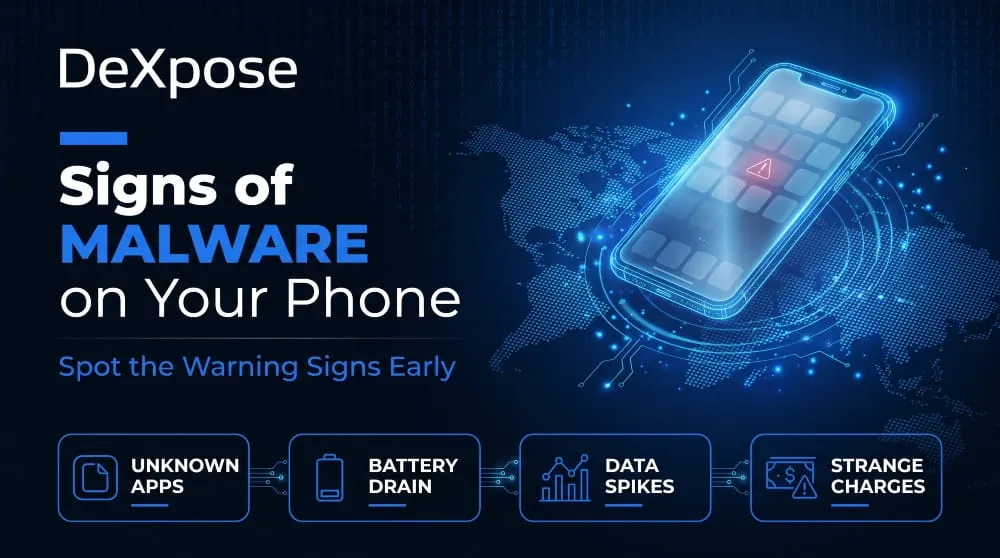
The clearest signs of malware on a phone are unexpected behavior: apps you did not install, fast battery drain, unusual data use, pop-ups outside the browser, and charges you do not recognize. One sign alone is rarely proof, but several together are worth acting on.
Warning signs that apply to every phone
Watch for apps you never installed, a battery that drains much faster than normal, mobile data use that jumps without a reason, and ads or pop-ups appearing when no browser is open. Other signs include your phone running hot while idle, contacts receiving messages you did not send, and unexplained charges on your phone bill or bank account.
Extra signs on iPhone
On an iPhone, look for a VPN or device management profile you didn’t set up, Safari redirecting you to pages you didn’t choose, and settings that change by themselves. A jailbroken phone, or an app installed from outside the App Store, is a strong warning on its own.
Extra signs on Android
On an Android phone, look for apps with no icon or a blank name, an app that reappears after you delete it, and apps holding device admin or accessibility access that have no reason to. Unexpected premium text messages and a home screen or browser that keeps changing are also typical of Android malware.
Is it malware or just a failing battery or App?
It is not always malware. A worn battery, a recent update that is still indexing, a buggy app, or poor signal can all cause heat, drain, and slowdowns. The difference is that malware tends to come with signs that make no sense for normal use, such as unfamiliar apps, odd permissions, or strange charges. If the only symptom is an old battery, replace it. If several signs appear together, work through the checks below.
How to Check Your Phone for Malware (5-Minute Triage)
You can check any phone for malware in about five minutes by reviewing apps, usage, and access settings. These steps work on both iPhone and Android and need no extra software.
Review installed apps and permissions.
Scroll through your full app list and remove anything you do not recognize or no longer use. Then check which apps hold sensitive permissions such as camera, microphone, location, contacts, and SMS. A simple calculator or wallpaper app that asks for your messages or location is a red flag. On iPhone, use Settings > Privacy & Security. On Android, use Settings > Security and privacy > Privacy > Permission manager (the path varies by brand).
Check battery, data, and storage usage.
Open the battery and data usage screens and look for apps that use far more than their purpose justifies. A game or utility that dominates mobile data in the background deserves suspicion. Also check storage for large files or apps you do not remember, since some malware downloads additional components after installation.
Look for unknown profiles, admin apps, and accessibility access.
Malware relies on these settings to stay hidden. On iPhone, check Settings > General > VPN & Device Management for profiles you did not install. On Android, check the device admin apps list and the accessibility list in Settings. Accessibility access lets an app read and control the screen, so it should only belong to tools you deliberately enabled.
How to Scan an iPhone for Malware
You can’t scan an iPhone the way you can a computer because Apple doesn’t let apps inspect other apps or system files. Instead, check for signs of infection by reviewing profiles, permissions, and usage, and by keeping iOS current.
Check VPN and device management profiles.
Go to Settings > General > VPN & Device Management. If you see a profile you didn’t install and it is not from your employer or school, tap it and choose Remove Profile. Also review the VPN list for connections you do not recognize, since a malicious VPN can route your traffic through an attacker.
Review Safari, app permissions, and Battery usage
In Settings > Battery, check the usage list for apps that consume more than you expect. In Settings > Privacy & Security, review which apps can access your camera, microphone, location, and photos, and revoke anything unnecessary. Also check Safari for unfamiliar extensions or a changed homepage, and delete apps you do not use.
Is there an iPhone malware scanner?
Not in the traditional sense. Apps in the App Store described as iPhone malware scanners cannot examine other apps or the system, so they mostly offer web filtering, breach alerts, or security advice. They can be useful extras, but none can truthfully scan your iPhone for viruses the way a desktop antivirus does. Be wary of any app that claims to find malware and then asks for payment to remove it.
Free iPhone checks that need no app
The most effective free checks are already on the phone. Update iOS in Settings > General > Software Update, review profiles and permissions as above, and check Settings > Privacy & Security > App Privacy Report to see which apps contact which domains. If you suspect a targeted attack, Lockdown Mode shrinks the attack surface at the cost of some features.
How to Scan an Android for Malware
You can scan an Android for malware using Google Play Protect, which is built into every phone with Google Play, plus manual checks of permissions and admin access. Together, they catch most common threats.
Run a Google Play Protect scan.
Open the Google Play Store, tap your profile picture, choose Play Protect, and tap Scan. It checks installed apps, including ones from outside the Play Store, and flags harmful ones. Make sure Scan apps with Play Protect is switched on so it keeps checking in the background.
Boot into Safe Mode to isolate bad apps.
Safe Mode starts Android with only the apps that came with the system, so third-party malware cannot run. To enter it on most phones, press and hold the power button, touch and hold Power off, then tap OK to restart in Safe Mode (steps vary slightly by brand). If the odd behavior stops in Safe Mode, a downloaded app is the cause.
Check Samsung and other manufacturer security tools.
Many brands include their own scanner. On Samsung phones, open Settings > Battery and device care > Device protection and run a scan (the menu name varies by One UI version). Other makers offer similar tools in their security or phone manager apps. These are useful second opinions alongside Play Protect.
Review device admin and accessibility permissions.
Go to the device admin apps list in your security settings and the accessibility list in Settings > Accessibility. Treat any app you didn’t deliberately enable as suspicious. Malware uses these permissions to block its own removal and to read what is on your screen, so check them even if the Scan finds nothing.
How to Remove Malware from an iPhone
To remove malware from an iPhone, update iOS, delete suspicious apps and profiles, clear Safari data, and use a reset only if the problem continues. The first three steps solve most iPhone problems.
Update iOS and restart
Install the latest iOS from Settings > General > Software Update, then restart the phone. Updates patch known flaws and often end whatever the malware relied on. Do this first because it is quick and rarely causes any loss.
Delete suspicious apps and profiles.
Press and hold the suspicious App on the Home Screen and choose Remove App, then Delete App. Then remove any unknown profile in Settings > General > VPN & Device Management. Afterward, change your Apple Account password from a trusted device.
Clear Safari data
If the symptoms are pop-ups or redirects in the browser, clear Safari’s stored data. Go to Settings > Safari (in newer versions, Settings > Apps > Safari) and choose Clear History and Website Data. This removes cookies and cached pages that may be part of the problem.
Restore from backup or factory reset (last resort)
If the phone still misbehaves, back up your photos and contacts, then choose Settings > General > Transfer or Reset iPhone > Erase All Content and Settings. Set the phone up as new first and check whether the problem returns before restoring a backup, since an old backup can bring the problem back.
How to Remove Malware from an Android Phone
To remove malware from an Android phone, restart in Safe Mode, uninstall the suspicious App, revoke its admin access if it resists, clear browser data, and factory reset if the symptoms persist.
Uninstall the App in Safe Mode
Restart the phone in Safe Mode, then open Settings > Apps, select the suspicious App, and tap Uninstall. Because Safe Mode pauses third-party apps, malware cannot block removal. Restart normally afterward and check that the symptoms are gone.
Revoke admin access first when an app resists removal.
If the Uninstall button is greyed out or the App keeps returning, it probably holds device admin rights. Open the device admin apps list in your security settings, switch off that App, then uninstall it from Settings > Apps. Also remove its accessibility access under Settings > Accessibility.
Clear cache and browser data
Open Settings > Apps > Chrome (or your browser) > Storage, then clear the cache and the site data. This stops redirects and pop-ups that depend on stored cookies. Also check Settings > Apps > Special app access > Install unknown apps, and turn that permission off for any app that doesn’t need it.
Factory reset steps and what to back up
If the malware persists, a factory reset removes nearly all of it. Back up photos, contacts, and documents only, never apps or APK files. Then open Settings > System > Reset options > Erase all data (factory reset). After the reset, install apps only from Google Play and change your important passwords from a clean device.
Free Ways to Scan and Remove Phone Malware
You can scan and remove phone malware for free using the tools already built into your phone, which are enough for most people. Third-party apps add extras, but you don’t need them for a basic cleanup.
Built-in protection vs third-party scanners
Google Play Protect on Android and iOS’s built-in controls handle most everyday threats at no cost. Third-party mobile security apps can add web filtering, scam-link warnings, and breach alerts, which help most on Android and mainly add web and account safeguards on iPhone. They work best as an added layer, not as a replacement for updates and careful installation.
How to judge a mobile security app (without a “best of” list)
Choose an app by what it can honestly do. Prefer vendors that publish results from independent labs such as AV-Comparatives or AV-TEST, clearly explain what data they collect, and don’t hide basic features behind aggressive upsells. Install it only from the official store, and treat any app that asks for broad permissions beyond its purpose as a warning sign.
Fake antivirus pop-ups and scareware
A pop-up that says your phone is infected and urges you to call a number or install a cleaner is almost always a scam, and the cleaner is often the malware. Close the tab, don’t call, and don’t install anything. If the pop-up keeps returning, clear your browser data and run a scan with a tool you already trust.
After Removal: Secure Your Accounts and Check What Leaked
Removing malware stops further damage, but it does not undo what was already stolen. After cleanup, treat passwords, sessions, and banking details on the phone as potentially exposed.
Change passwords and sign out of sessions from a clean device.
Use a different, trusted device to change the passwords for your email, banking, and social accounts, starting with email because it controls password resets. Sign out of all active sessions, turn on multi-factor authentication, and review your bank statements and phone bill for charges you do not recognize. Contact your bank if you see anything unusual.
Why infostealers and banking trojans matter after cleanup
Infostealers and banking trojans steal saved passwords, session cookies, and one-time codes, then upload them to an operator who sells or reuses them. The theft happens in the first minutes after infection, so a clean phone does not mean clean accounts. A leaked login can enable account takeover long after the App is gone.
Check your exposure with DeXpose.
DeXpose is a dark web monitoring and threat intelligence platform that shows whether your credentials and data have appeared in breaches or malware logs. Run the Email Data Breach Scan to check whether your email appears in leaked data, or get a Free Dark Web Report for your domain in seconds. If something shows up, change those credentials immediately.
How to Prevent Malware on Your Phone
The best way to prevent malware on a phone is to keep it updated, install apps only from official stores, and treat unexpected links and permission requests with suspicion. These habits stop most infections before they start.
Update habits, official stores only, permission hygiene
Turn on automatic updates for the operating system and for apps. Install apps only from the Apple App Store or Google Play, and read the permissions an app requests before accepting. Delete apps you no longer use, since forgotten apps can become a risk after an update or a sale to a new owner.
Avoiding phishing links, fake updates and SMS scams
Do not tap links in unexpected text messages, delivery notices, or account-locked alerts. Open the official App or type the website address yourself. Never install an update from a pop-up or a link, because real updates arrive through the Settings app or the official store.
Go deeper with the malware protection guide.
Phones are one part of a wider picture that also includes computers, networks, and business systems. For the full layered approach, read the DeXpose Malware Protection guide.
Frequently Asked Questions
Can you get malware by visiting a website or clicking a link?
Yes, but a link alone rarely infects a modern, updated phone. The usual danger is that the site tricks you into installing an app, accepting a profile, or entering your login on a fake page. Visiting a website can trigger a download or a redirect, so avoid unknown links and keep the phone updated.
Does a factory reset remove all malware?
A factory reset removes almost all malware, because it erases apps and data and reinstalls the system. Very rare firmware-level threats can survive it, and restoring from an infected backup can bring the problem back. Set the phone up as new first, and restore only photos and contacts rather than apps.
How do I know if my phone has malware without an app?
Check the signs and settings yourself. Look for unfamiliar apps, unknown profiles or admin apps, unusual battery and data use, and unexplained charges. On Android, Google Play Protect is built in and needs no extra download. On iPhone, review profiles and permissions in Settings.
Can malware steal banking details?
Yes. Banking trojans are among the most common mobile threats, and they work by overlaying fake login screens and reading text messages to capture codes. If you suspect infection, contact your bank, change your passwords from a clean device, and check recent transactions.
Is it safe to use a free malware scanner on my phone?
It can be, if the App is from the official store, comes from a vendor with independent test results, and asks only for permissions it needs. Avoid apps that appear through pop-ups, demand payment to remove threats they found, or ask for accessibility access. Free built-in tools are enough for most users.
Article Link: Malware on Phone | How to Check, Scan and Remove It on iPhone and Android (2026 Guide) - DeXpose