To remove malware, disconnect from the internet, restart in Safe Mode with Networking, and run a full security scan to delete what it finds. Next, uninstall suspicious apps and browser extensions, clear leftover startup items, and change your passwords from a clean device if the malware keeps coming back; back up your files and reset Windows.
Introduction to Malware Binary Triage (IMBT) Course
Looking to level up your skills? Get 10% off using coupon code: MWNEWS10 for any flavor.
Enroll Now and Save 10%: Coupon Code MWNEWS10
Note: Affiliate link – your enrollment helps support this platform at no extra cost to you.
New to the topic? Our guide to what malware is explains what you are dealing with, and the steps below work for most Windows computers.
Remove vs delete vs uninstall vs clean: what each term means.
These four words describe different parts of the same cleanup. Deleting removes a malicious file, uninstalling removes a malicious program through the normal Windows process, and cleaning removes the traces it left behind, such as startup entries and changed settings. Removal is the whole job: all three together, followed by checking that nothing was left to restart the infection.
Can you delete malware yourself?
Yes, you can delete most common malware yourself with a security scan and the steps in this guide. Adware, browser hijackers, and ordinary trojans, along with most other types of malware, are usually removable at home. Stop and get help if the malware keeps returning after a scan, if the device belongs to a business, or if you are dealing with ransomware or a possible rootkit.
How long does malware removal take?
A standard removal usually takes one to several hours, since a full scan alone can run for an hour or more. A clean reinstall of Windows, followed by restoring files and reinstalling apps, can take half a day. Plan the work for a time when you do not need the computer.
Before You Remove Malware: Safety Steps
Disconnect from the internet.
Disconnect the device from the internet before you start by turning off Wi-Fi or unplugging the network cable. Many types of malware use the connection to send data to attackers or to download more malicious software, so cutting it limits the damage while you clean up. You can reconnect briefly later for updates, and Safe Mode with Networking handles that.
Stop logging in to accounts on the infected device.
Avoid signing in to email, banking, or work accounts on the infected device. Keyloggers and infostealers can capture whatever you type, so every new login adds to what the attacker already has. Do anything sensitive from a different, trusted device until the cleanup is finished.
Back up important files (documents and photos, not programs)
Back up documents, photos, and other personal files to an external drive before you begin, but do not copy programs, scripts, or installers, since those can carry the infection. Treat the backup as untrusted until you have scanned it on a clean system.
Use a clean second device for passwords and research.
Use a second device you trust for research, password changes, and contacting your bank. If you only have one device, wait until the malware is removed before changing important passwords, and then change them again for safety. Prevention habits that help afterward are covered in our malware protection guide.
How to Delete Malware on Windows (Step by Step)
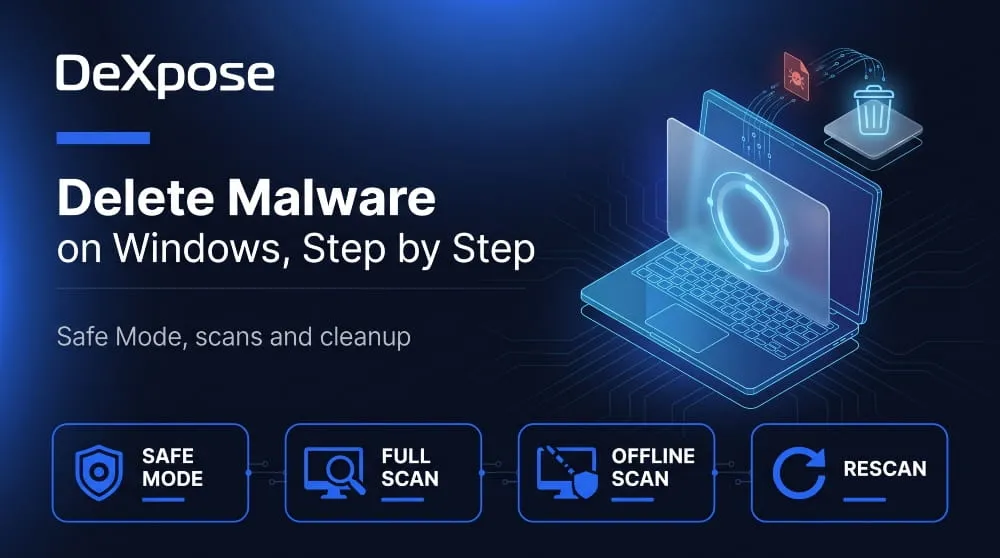
To delete malware on Windows, restart in Safe Mode, run a full and an offline scan, uninstall anything suspicious, clean up leftovers, and rescan. Each step below stands on its own, and together they cover the vast majority of home infections.
Boot into Safe Mode with Networking
Safe Mode with Networking starts Windows with only essential services, which stops most malware from running while you remove it. Open Settings, go to System, then Recovery, choose Restart now under Advanced startup, and select Troubleshoot, Advanced options, Startup Settings, and Restart. Press 5 or F5 when the menu appears. The full walkthrough is in our guide on how to scan for malware.
Run a full scan and a Microsoft Defender Offline scan, then remove what it finds.
Run a full scan in Windows Security under Virus & threat protection, then run a Microsoft Defender Offline scan, which restarts the computer and scans before Windows fully loads. When either scan finishes, open Protection history, review each item, and choose Remove or Quarantine. Allow the scanner to delete everything it flags rather than picking and choosing.
Uninstall suspicious programs from Settings
Open Settings, then Apps, then Installed apps, and sort by install date. Uninstall anything you do not recognize, especially programs installed around the time the problems started, such as odd “PC optimizers”, fake video players, or unknown toolbars. Search the name online first if you are unsure.
Delete leftover temporary files, startup entries, and scheduled tasks.
Clear temporary files under Settings, then System, then Storage, then Temporary files. Open Task Manager and turn off unfamiliar items on the Startup apps tab, then open Task Scheduler to delete tasks you did not create. Malware often leaves these behind so it can reinstall itself after a reboot.
Reset the hosts file and proxy settings.
Some malware redirects websites by editing the hosts file or by forcing a proxy server. In Settings, go to Network & internet, then Proxy, and turn off any manual proxy you did not set. Then open the hosts file with Notepad as administrator and delete any entries that are not comments. A default hosts file contains only explanatory lines.
Rescan to confirm
Restart normally and run another full scan to confirm the threats are gone. A clean result is a good sign, but wait a day or two and scan again, because some malware only reappears after a reboot or reconnection. See our guide to how to scan for malware for second-opinion scanning.
How to Uninstall Malware (Programs, Extensions and Apps)
How to uninstall malicious programs
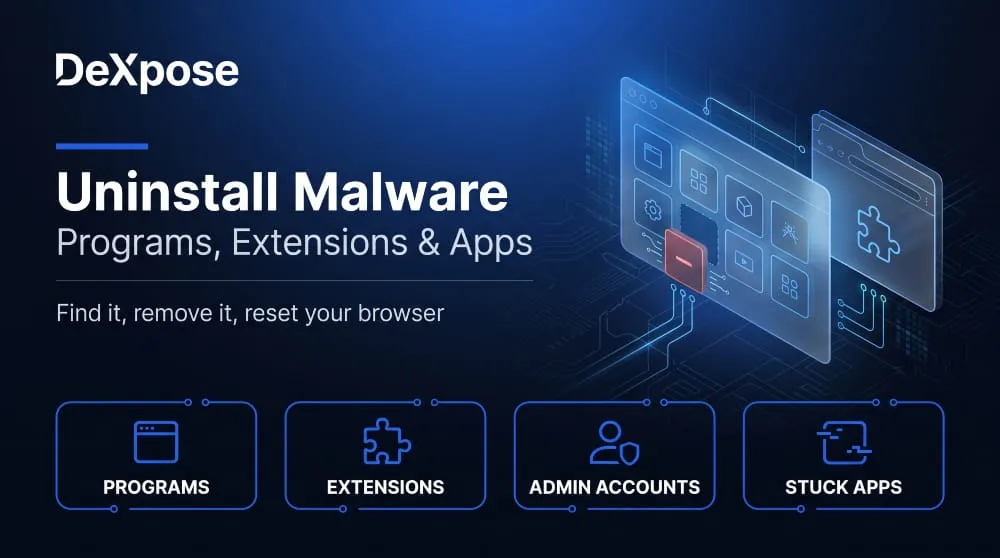
Uninstall malicious programs from Settings > Apps > Installed apps by selecting the program and choosing Uninstall. If a program does not appear in the list or the uninstall fails, run the removal in Safe Mode, where the malware is less able to defend itself, and then run a scan to remove what remains.
How to remove malicious browser extensions and reset your browser
Open your browser’s extensions page and remove any extension you don’t recognize or no longer use. Then reset the browser to its defaults: in Chrome, go to Settings, then Reset settings, then Restore settings to their original defaults. This clears hijacked homepages, forced search engines, and injected pop-ups.
How to remove unknown admin accounts and remote-access tools
Check Settings, then Accounts, then Other users, for accounts you did not create, and look through installed apps for remote-access software such as AnyDesk, TeamViewer, or ScreenConnect that you did not install. Attackers use these to return after a cleanup. Remove them, and treat any unknown account as a sign that someone else controlled the device.
What to do when malware won’t uninstall
When malware will not uninstall, boot into Safe Mode and try again, then run a Microsoft Defender Offline scan. If it still returns, a hidden process is probably restarting it, and the manual steps in the next section or a clean reinstall are the reliable options.
How to Clean Malware Manually When a Scanner Can’t
Manual cleaning means finding and deleting the pieces of the infection yourself. It is more effective than scanning for a few stubborn threats, but it is also riskier, so use it only if the earlier steps failed.
End the process, then delete the file (and why order matters)
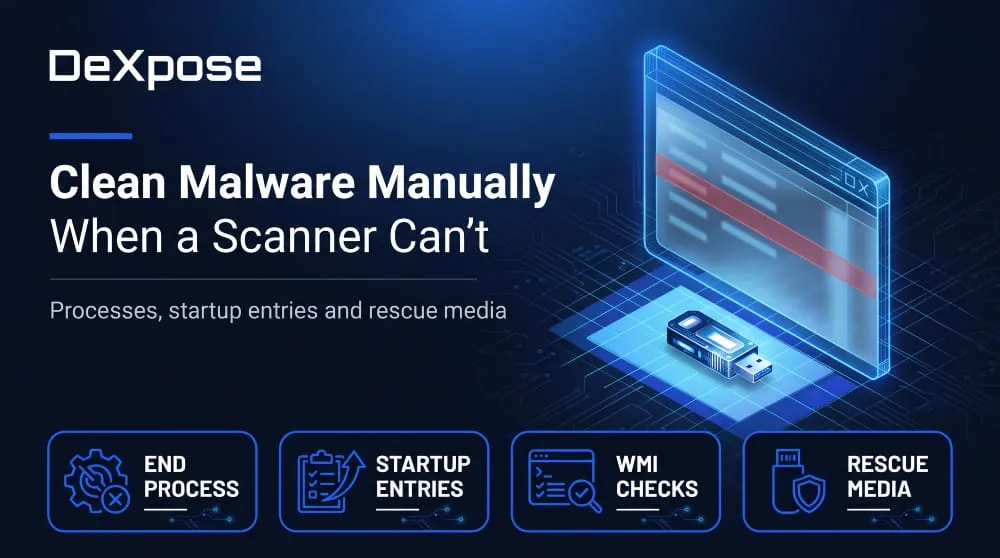
End the malicious process in Task Manager first, then delete its file, ideally in Safe Mode. If you delete the file while the process is still running, a watchdog process may recreate it immediately. To find the file, right-click the process and choose Open file location, and then delete the folder after the process has been stopped.
Remove startup entries, services, and scheduled tasks.
Malware survives reboots through startup entries, Windows services, and scheduled tasks. Review the Startup apps tab, the list of Services, and Task Scheduler, and delete the items that point to the malicious file. Microsoft’s free Autoruns tool shows every startup location in one list, which makes these entries easier to spot.
Check WMI and other persistence mechanisms.
Advanced malware stores its launch instructions in places normal startup lists don’t show, such as Windows Management Instrumentation (WMI) event subscriptions. These are difficult to find and remove by hand, and an attacker who used them may have had deeper access than ordinary adware. In that case, a clean reinstall is the safer route.
Use bootable rescue media for an offline scan.
A bootable rescue disk from an established security vendor starts a separate system from a USB drive and scans your Windows installation while it is not running. This catches malware that hides while Windows is active, and the built-in Microsoft Defender Offline scan does something similar without extra media.
Why manual removal is risky
Manual removal is risky because deleting the wrong file, registry entry, or service can break Windows or leave the malware partially working. Back up your files first, change one thing at a time, and stop if you are unsure. When in doubt, a clean reinstall is safer than guessing.
Quarantine vs Delete: What Each Does
What does quarantine mean?
Quarantine means the security software moves a suspicious file to an isolated, protected location where it cannot run or harm the system. The file still exists, but it is locked away. In Windows Security, you can see quarantined items under Protection history.
When to quarantine and when to delete
Quarantine first when you are unsure, and delete when you are confident the file is malicious. Quarantine is reversible, so it is the safer default while you investigate. Once you have confirmed the threat, or a second scan agrees, delete it permanently so it cannot be restored by accident.
How to handle false positives and restore safely
Security software occasionally flags legitimate files. Before you restore anything, check the file name and location, run a second reputable scanner, and look up the file’s reputation. Restore only if you are confident it is safe, and never restore a file you cannot identify.
Does a Factory Reset Delete Malware?
A factory reset deletes most malware because it wipes the operating system, apps, and settings and installs a fresh copy. It is the most reliable fix for ordinary infections, but it is not a complete guarantee in every case.
What a reset removes
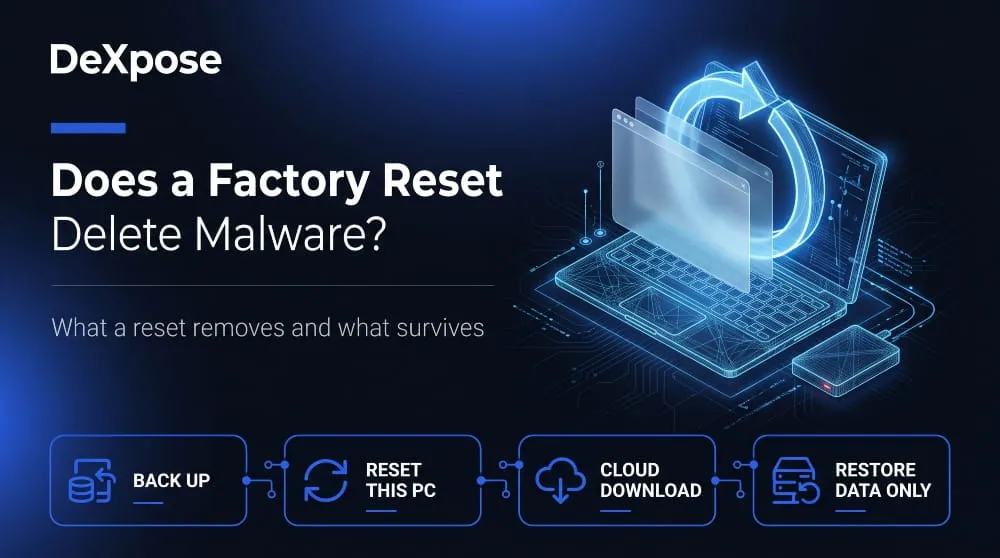
A reset removes the installed operating system, all apps, and the settings malware used. Running Reset this PC with the Remove everything option and the cloud download choice reinstalls a clean copy of Windows and deletes the infected system files.
What can survive a reset (infected backups, firmware-level threats)
The main thing that survives a reset is the malware you reintroduce yourself, for example by restoring an infected backup or reinstalling an infected program. Firmware-level threats that hide in the BIOS or UEFI can also survive, but these are rare and usually tied to targeted attacks, not everyday malware. If you suspect one, you’ll need a professional firmware reflash.
How to do a clean reinstall properly
Back up your personal files, then open Settings, go to System, then Recovery, and choose Reset this PC with Remove everything. Choose a cloud download if available, complete the setup, install all Windows updates, and install security software before you reinstall any apps. Download apps fresh from their official sources.
How to restore files without restoring the infection
Restore only documents, photos, and other data files, and scan them on the clean system first. Do not restore programs, installers, scripts, or browser profiles, because those can carry the infection back. Reinstall apps from official sources and sign in to services again from scratch.
Removing Stubborn and Hidden Malware
Signs that removal failed
Removal has failed if the same alerts return after a reboot, the browser keeps redirecting, your security software turns itself off, or new unknown programs appear. These symptoms mean something is still restarting the malware, usually a hidden process, a persistence entry, or a deeper rootkit.
Rootkits and persistent threats
Rootkits hide themselves and other malware from the operating system, so normal scans often cannot see them. An offline scan from rescue media is the best first step, and a clean reinstall is usually the only fully reliable fix. Our rootkit guide explains how they work and how to detect them.
Fileless malware that leaves nothing to delete
Fileless malware runs in memory and abuses built-in tools, so there may be no malicious file to delete. Restarting clears the in-memory part, but the malware often relaunches through a scheduled task or WMI subscription. Removing those entries and resetting your credentials is what finishes the job.
When a clean reinstall is the only reliable fix
A clean reinstall is the right choice when the malware keeps returning, when you suspect a rootkit or deep persistence, or when the device held highly sensitive data. It takes longer than a scan but removes the uncertainty about whether anything was left behind.
How to Remove Malware on Other Devices
Mac
Macs follow a different process because the operating system and tools differ. See our guide to checking for malware on Mac, Windows, and PC.
Android
To remove malware on Android, restart in Safe Mode by long-pressing the power-off option, then open Settings and Apps and uninstall anything you do not recognize. If an app will not uninstall, remove its device administrator rights first under Security settings. Then run a Google Play Protect scan, and factory reset the phone if the problem continues.
iPhone
iPhones are rarely infected by traditional malware, but you can still clean up. Update iOS, delete unknown apps, remove unknown configuration profiles under Settings, then General, then VPN & Device Management, and clear Safari history and website data. If the problem continues, back up your data and use Erase All Content and Settings. For more on either platform, see our guide to malware on a phone.
Browser only
If the problem is limited to your browser, reset the browser and remove extensions first. For Chrome specifically, see our guide to removing malware from Chrome.
After Removal: Secure Your Accounts and Recover

Change passwords from a clean device.
Change the passwords for email, banking, social media, and work accounts from a clean device, starting with email because it controls password resets for everything else. Use unique passwords stored in a password manager.
Turn on multi-factor authentication and revoke active sessions.
Turn on multi-factor authentication, ideally with an authenticator app or passkey, and sign out of all active sessions in each account. This matters because some malware steals session cookies, which let attackers stay logged in even after you change a password.
Check bank, email, and social accounts for misuse.
Review recent activity on your bank, email, and social accounts for transactions, forwarding rules, or posts you did not make. Report anything suspicious to the provider immediately, and consider a credit freeze if identity details may have been exposed.
Malware recovery: restoring files and rebuilding trust
Recover by restoring only scanned data files from your backup, updating every app and the operating system, and reinstalling security software. Rebuild trust gradually: keep monitoring accounts and device behavior for a few weeks after the cleanup.
How to Confirm the Malware Is Really Gone
Rescan after 24 to 48 hours
Run a full scan again a day or two after removal. Some malware is dormant or reinstalls itself after a reboot, so an immediate clean result is not conclusive.
Watch processes, network activity, and browser behavior.
Watch for the symptoms that triggered the cleanup: slowdowns, unfamiliar processes in Task Manager, unexpected network activity, browser redirects, and disabled security software. If none return over several days, removal likely worked.
What to do if symptoms return
If symptoms return, assume something survived. Run an offline scan from rescue media, and if that doesn’t resolve it, back up your data and do a clean reinstall.
When to Call a Professional or Wipe the Device
Work devices and business data
If the device belongs to your employer or holds business data, report the infection to your IT or security team immediately and do not try to clean it yourself. Business incidents can involve legal reporting duties, and self-cleaning can destroy evidence.
Ransomware and financial exposure
Ransomware, or any infection involving bank or payment details, justifies professional help. Disconnect the device, do not delete anything, and contact your bank or an incident-response provider. Report the incident to your national cybercrime authority as well.
Repeat infections
If the same device is reinfected after a thorough cleanup, a professional can look for underlying causes such as a compromised router, a vulnerable service, or habits that keep exposing the device.
What to look for in a removal service
Choose a service you contacted yourself, with a clear explanation of what it will do and a transparent price. Be wary of anyone who contacts you first or claims your computer is infected through a pop-up or phone call, since those are common tech-support scams. Never give remote access to a service you cannot verify.
A Clean Device Does Not Mean Your Data Is Safe
Malware removal does not undo data theft.
Removing malware stops the leak but does not recover what was already taken. If an infostealer or keylogger ran, even briefly, your passwords, cookies, and files may already be in an attacker’s hands. Verizon’s 2026 Data Breach Investigations Report found that among ransomware victims with a prior credential or infostealer leak, half saw that exposure within 95 days before the attack, which shows how long stolen data can sit before it is used.
How infostealers exfiltrate before you remove them
Infostealers collect and upload their haul within moments of running, usually before any alert appears. The stolen data is then sold or traded on dark web markets and messaging channels. Our guide to infostealer malware explains how this works, and the combolist dark web ecosystem shows how stolen credentials are reused.
Common Malware Removal Mistakes
Staying online while infected
Staying online lets malware keep sending data and downloading new components. Disconnect first and reconnect only in Safe Mode with Networking for updates.
Deleting visible files but missing persistence
Deleting the obvious file is not enough if a startup entry, scheduled task, or service can recreate it. Clean the persistence points as well as the file.
Reusing old passwords
Changing a password to a small variation of the old one, or reusing it elsewhere, leaves accounts open to credential stuffing. Use new, unique passwords for every account.
Restoring from an infected backup
Restoring a full system image or program files from a backup made after the infection brings the malware back. Restore only scanned data files.
Trusting fake cleaners and scareware
Pop-ups that claim your device is infected and push a “cleaner” are usually scareware, and the program itself is often the malware. Use only security tools from your operating system or from vendors you sought out yourself.
Check Whether Malware Has Already Exposed Your Data
Removing malware cleans the device, but it cannot tell you whether your information was already stolen. DeXpose’s Free Dark Web Report checks whether your email or credentials appear in leaked datasets and infostealer logs, so you can change passwords and secure accounts before they are abused. Security teams can go further with breached credentials monitoring, which watches continuously for exposed employee and customer credentials.
Frequently Asked Questions (FAQ)
How do I remove malware from my computer?
Disconnect from the internet, restart in Safe Mode with Networking, run a full scan and a Microsoft Defender Offline scan, and remove what they find. Then uninstall suspicious apps and extensions, clean up startup items, and change your passwords from a clean device.
How do I delete malware manually?
End the malicious process in Task Manager, delete its file, and remove its startup entries, services, and scheduled tasks. Do this in Safe Mode, back up your files first, and stop if you are unsure, because manual removal can break Windows.
Is it safe to delete malware yourself?
It is generally safe for common consumer malware if you follow a careful process and back up your files. Get professional help for ransomware, business devices, or infections that keep returning.
What if malware won’t uninstall?
Boot into Safe Mode and try again, then run a Microsoft Defender Offline scan. If it still will not go, use rescue media for an offline scan or do a clean reinstall.
Does a factory reset remove malware?
Yes, in nearly all cases, because it wipes the operating system and apps. Exceptions are rare firmware-level threats and malware you restore from an infected backup.
What does it mean to quarantine malware?
Quarantining malware means the security software isolates the file in a protected location so it cannot run. The file is not deleted so that it can be restored or permanently removed later.
Should I quarantine or delete malware?
Quarantine first if you are unsure, because it is reversible, and delete once you are confident the file is malicious. Deleting is permanent.
How long does malware removal take?
A standard removal takes one to several hours, mostly because of the full scan. A clean reinstall with file restoration can take half a day.
How do I know the malware is gone?
Run a full scan and an offline scan, then rescan after a day or two and watch for the original symptoms. If you get a clean scan and several days of normal behavior afterward, the removal likely worked.
Article Link: How to Remove Malware | Delete, Uninstall & Clean It Fast